Zanshin's New Features  | May 2026


Zanshin's New Features |
September 2,  2025

Details of the new features!

1. New Organization Dashboard

CISOs and executives now have an aggregated, high-level view of their risks across all monitored scan targets. Instantly assess portfolio health, prioritize critical actions, and efficiently report risk posture to stakeholders. To ensure technical teams still have the granular data they need, the previous dashboard visualizations will be moved to the top of the Alerts page.

Go to the “MY ORGANIZATION” section and select “Dashboard” from the left-hand menu.


The following elements are presented on the screen:

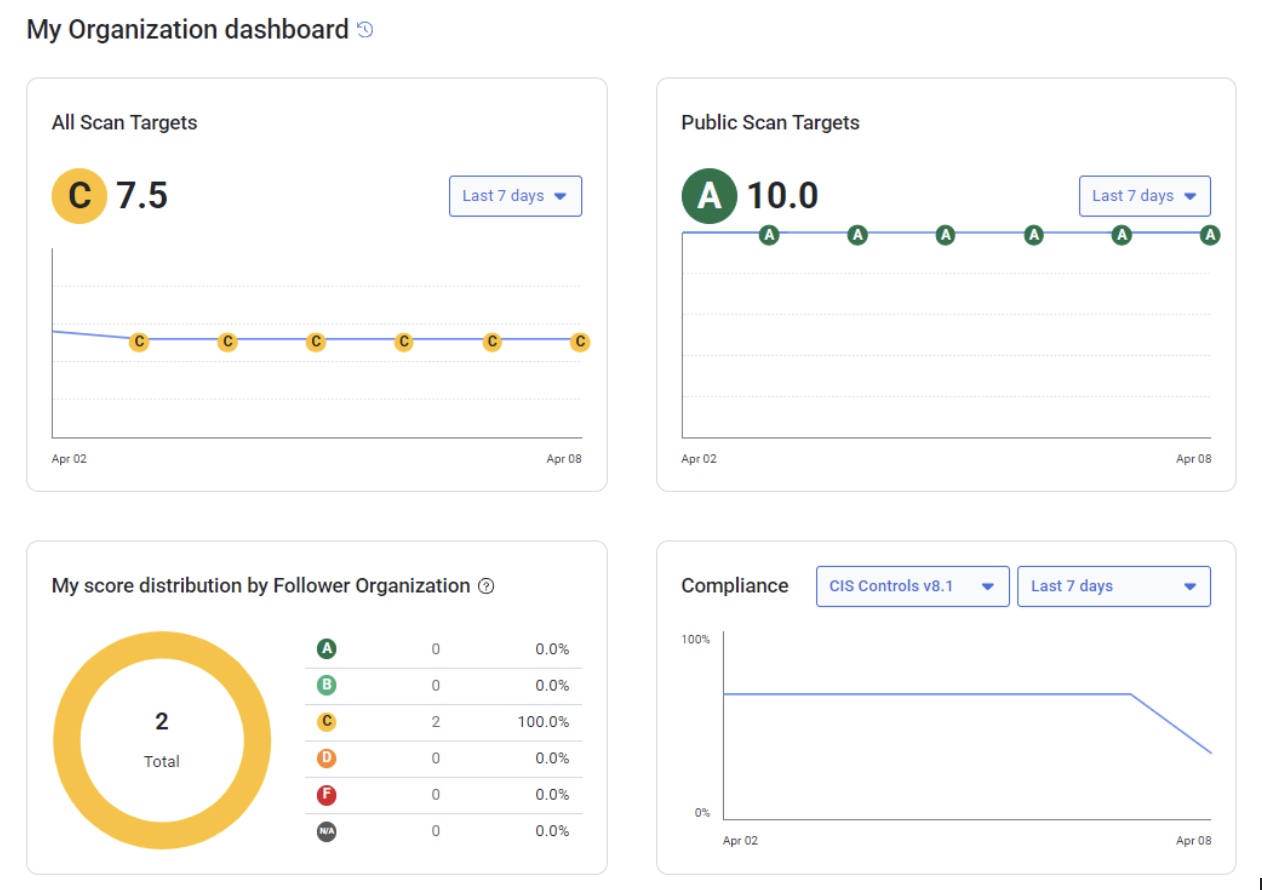
  • The “All Scan Targets” and “Public Scant Targets” history charts that provide an immediate "at-a-glance" status of the current security health (using the score) while simultaneously showing the stability or volatility of that score over a specific time range . 
  • A “My Score distribution by Follower Organization” doughnut chart that shows how the score is distributed by follower organizations.
  • A “Compliance” historical line chart that shows how compliance is the organization over a specific time range.
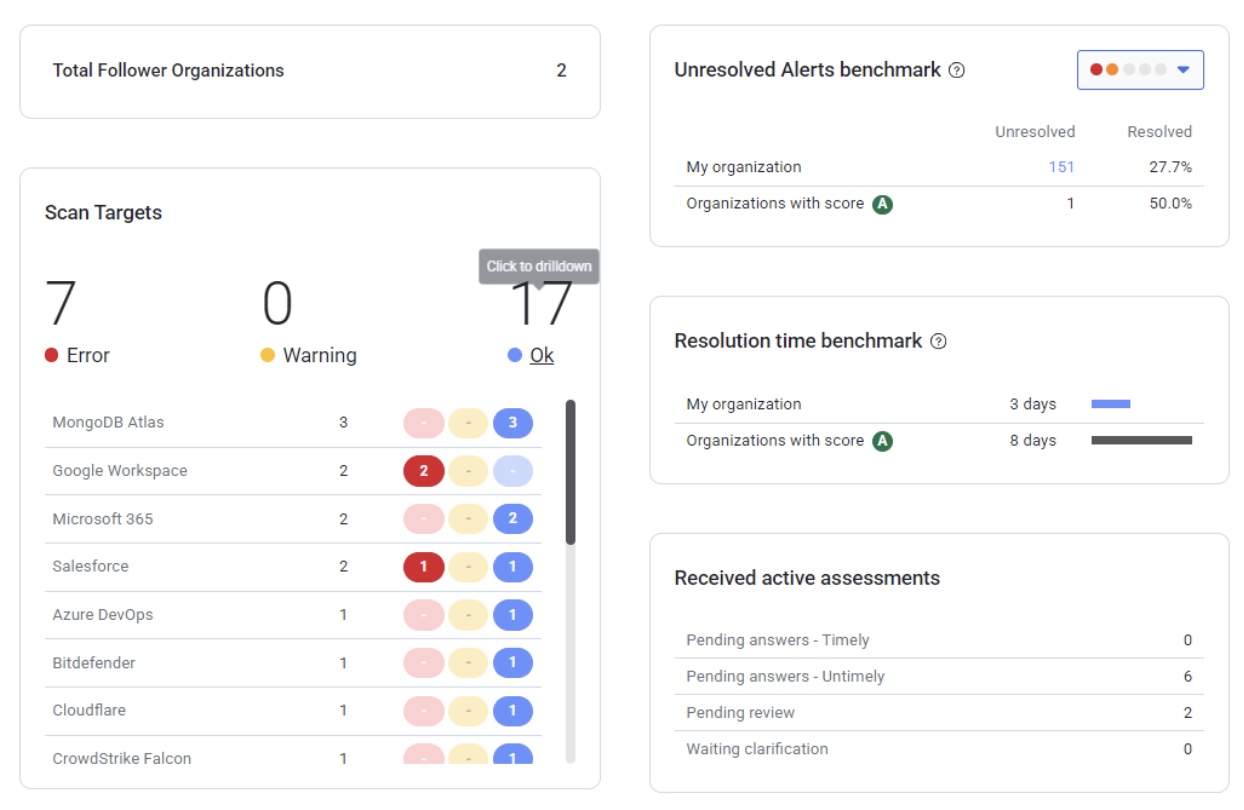
  • The number of organizations that are following your organization.
  • The “Scan Targets” summary shows the status of the scan targets per technology allowing administrators to instantly identify which specific integrations require immediate attention.
  • A “Unresolved Alerts benchmark” table comparing your organization with organizations with “A” score for the selected severities (defaults to critical and high severities).
  • A “Resolution time benchmark” table comparing your organization's operational efficiency with organizations with “A” score.
  • A “Received active assessments” table showing the number of received assessments by their status helping track the lifecycle of security assessments to ensure that administrative tasks and audits are being completed on schedule.


2. Microsoft 365 Automatic Onboarding

Automating the Microsoft 365 onboarding process is important because it solves the three biggest pain points in technical setups: human error, time drain, and security gaps.

  • Elimination of Configuration Errors: Setting up MS365 involves handling sensitive strings like Client IDs, Secret Keys, and Permissions.
  • Drastic Reduction in "Time-to-Value": The process is reduced to a few minutes.
  • Reduced Support Overhead
  • Standardized Security: Least Privilege Principle is enforced. Only request the specific read-only scopes Zanshin needs, preventing users from accidentally granting more access than necessary.

a. Go to the “MY ORGANIZATION” section and select “Scan Targets” from the left-hand menu and click the “+” button in the “Microsoft 365” box.

b. Follow the instructions in the onboard process until you reach step 4.

c. In step 4 you will be instructed to onboard it automatically. Just follow the instructions. If you want to proceed manually due to security policies in place at your organization please execute the steps in Integrating Microsoft 365 through admin console.

.
3. New Scan Target Types

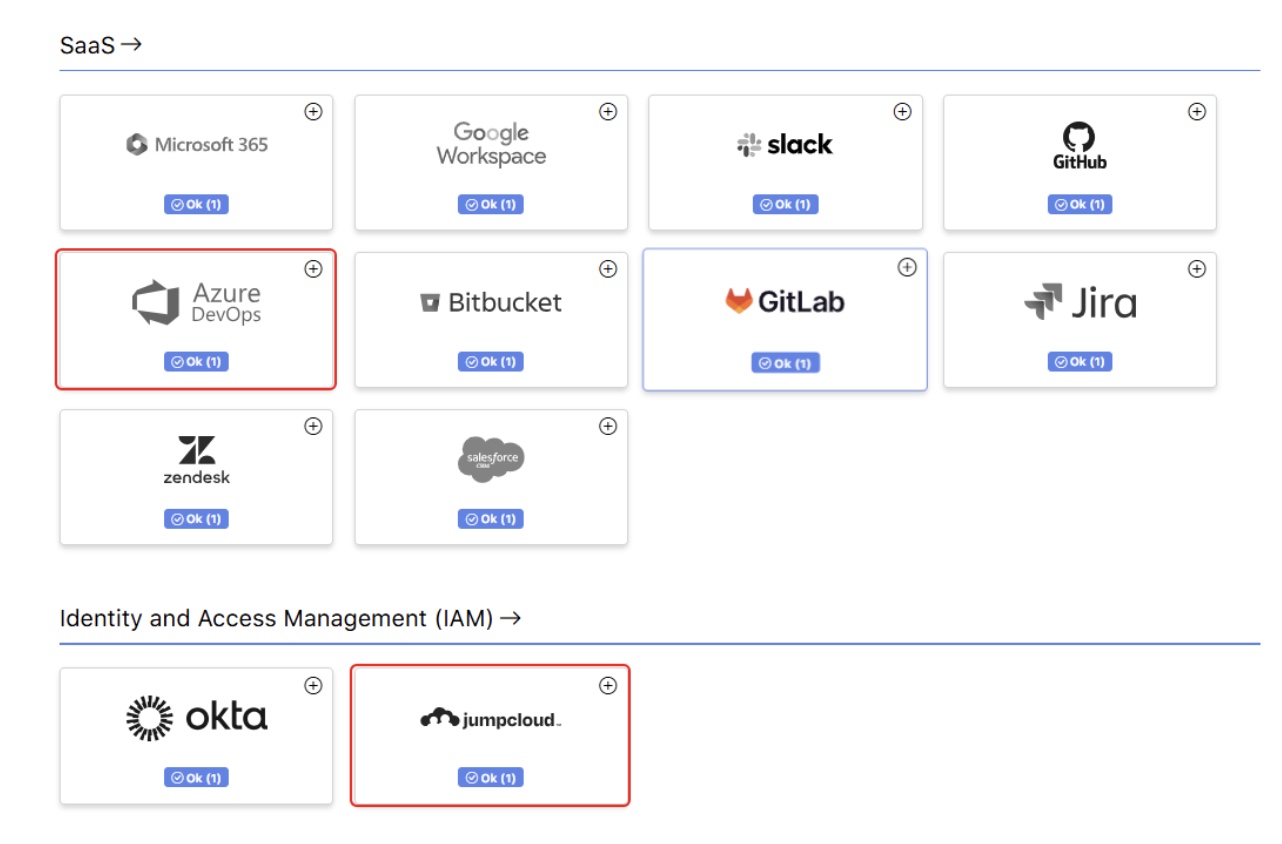
Added support for Azure DevOps and JumpCloud Open Directory Platform, expanding the range of platforms and services Zanshin can continuously monitor.

In the Scan Targets Dashboard page, locate the “SaaS” section to find “Azure DevOps” and the “Identity and Access Management” section for “JumpCloud Open Directory Platform”.

As usual, Zanshin will scan these platforms without ever having access to your sensitive data, such as your organization’s databases data or credentials. We simply ask for the minimal set of permissions to review security-relevant settings, to ensure you stay as safe as possible.

For more information, see: Azure DevOps Scan Target Registration on Zanshin and JumpCloud Open Directory Platform Registration in Zanshin.


4. Auto-Detect and Unshared Scan Targets

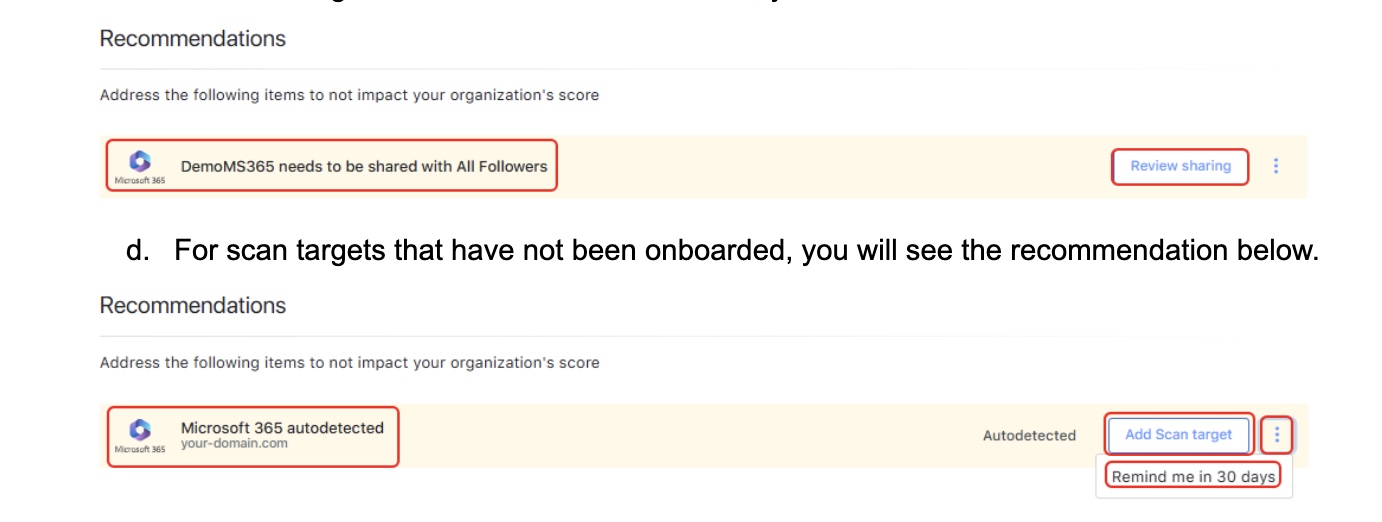
Transparency is key to a secure supply chain. If Zanshin detects that you possess relevant scan targets that you have not onboarded or explicitly shared with your follower organizations, the platform will alert you.

  1. Navigate to the "MY ORGANIZATION" section in the left-hand vertical menu and select "Scan Targets".
  2. Select the "Dashboard" or "List" tab. In both you will find the "Recommendations" section at the top of the screen, as shown below.
  3. For scan targets not shared with all follower organizations, you will see the recommendation to the side.

For more information, see: Understanding Automated Scan Target Detection.